📄 Template System
Introduction
The plugin boasts an exceptionally high degree of customization, but it's impossible to configure it without providing any settings. Even a very brief option requires a line in your YAML file. With numerous such options, a configuration file can become excessively long. Therefore, the plugin has introduced a template system, allowing you to define a base template and use parameters and overrides to fill in or overwrite certain parameters, significantly simplifying the process and reducing the time spent on repetitive configurations.
How it works?
To configure a template, you need to use templates as the root key in your YAML file. The first thing under templates is your template's name. In the example below, the template is called namespace:my_first_template. Everything under that name is the actual template content.
templates:
  namespace:my_first_template:
    option_1: true
    option_2: false
    option_3:
      - hello
    option_4: 20.25
    option_5:
      hello: world
Check out this quick animation to see how the plugin applies the template:
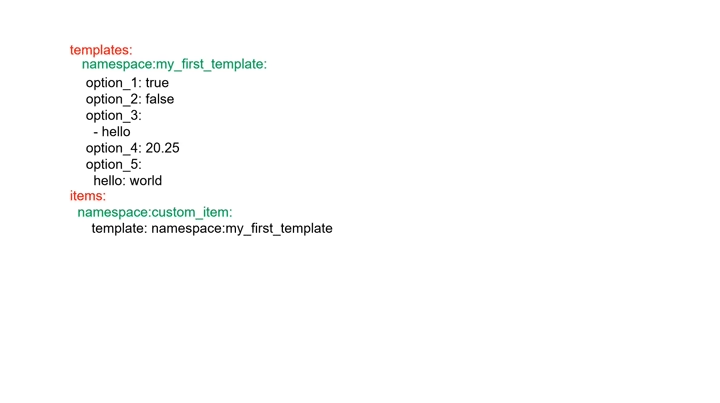
namespace:template_id serves as the unique identifier for your template. This name must be used whenever referencing or invoking this template elsewhere.
The configuration area under namespace:template_id is entirely customizable, as long as it adheres to YAML syntax. You have complete freedom to define it according to your needs.
Multiple Templates
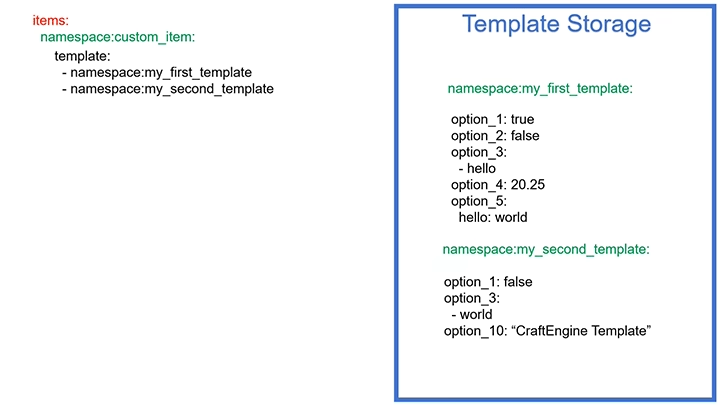
You can combine multiple templates by setting up the template as a list.
items:
  craftengine:custom_item:
     template:
       - namespace:my_first_template
       - namespace:my_second_template
Heads up: If two templates have the same setting, the one below will overwrite the one above. But if the setting is a list, they’ll merge into one combined list instead.
Merges
Merges deeply combines two config sections, including all lists - nothing gets left behind. Basically, merges function almost exactly like multiple templates.
items:
  craftengine:custom_bread:
    template: craftengine:apple_template
    arguments:
      nutrition: 1
      saturation: 2.5
    merges:
      data:
        food:
          can_always_eat: true
Overrides
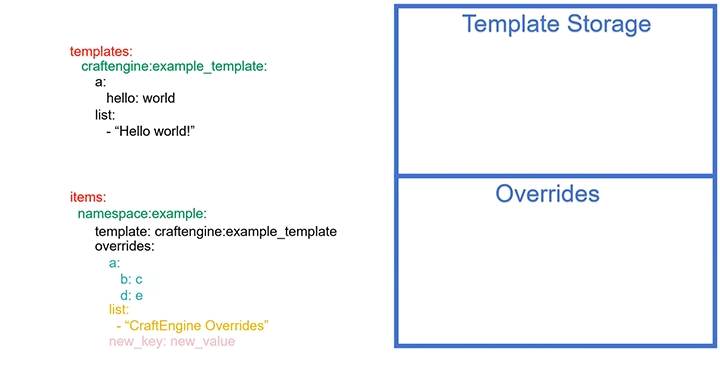
Overrides completely replace whatever's in the specified config path—including lists and maps. No merging, just a full swap.
items:
  craftengine:custom_bread:
    template: craftengine:apple_template
    arguments:
      nutrition: 1
      saturation: 2.5
    overrides:
      material: bread
Arguments
You can define parameters in template using ${xxx}, like ${nutrition} or ${saturation}. Then, when calling the template, use the arguments section to set the parameter values. Here's a quick example:
templates:
  craftengine:apple_template:
    material: apple
    data:
      food:
        nutrition: "${nutrition}"
        saturation: "${saturation}"
items:
  craftengine:custom_apple:
    template: craftengine:apple_template
    arguments:
      nutrition: 1
      saturation: 2.5
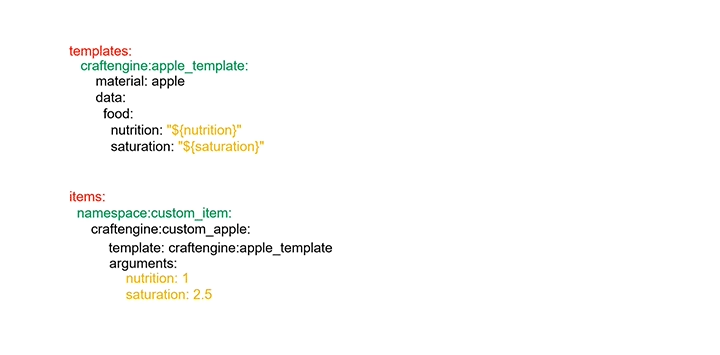
Template parameters are applied sequentially. This means that a parameter you have just defined is immediately available for use in any subsequent parameter.
arguments:
  arg1: topaz
  arg2: helmet
  arg3: ${arg1}_${arg2}
If you need to use curly braces {} as normal text (not as parameters), just escape them with a backslash like \{ or \}.
\${Hello world}
In addition, there are two special parameters, ${__NAMESPACE__} and ${__ID__}, which are automatically derived from the resource location of the current non-template entry and passed into any referenced template. For example:
items:
  default:palm_log:
    template: default:my_template
templates:
  default:my_template:
    data:
      item_name: "<lang:item.${__NAMESPACE__}.${__ID__}>"
items:
  default:palm_log:
    data:
      item_name: "<lang:item.default.palm_log>"
Default Values
To set default values for parameters, add :- after the parameter name - for example:
${nutrition:-1}${saturation:-2.5d}${map:-{aa:bb,cc:ddd}}${string:-"1234"}${nullable:-null}
The default values follow Minecraft's SNBT format (the same format used when specifying NBT data in commands).
Default values also support recursively nested parameters, such as:
item_name: "<!i><white>${arg1:-'${arg2:-\'${arg3:-abc}\'}'}"
Additional Argument Types
While most parameters are simple strings or numbers, some scenarios benefit from more user-friendly options. The extended parameter types were created for these cases.
- list
arguments:
  arg1:
    - value1
    - value2
- map
arguments:
  arg_1:
    option1: value1
    option2: value2
If a map used as a parameter contains the type key and should not be interpreted as a parameter type, you must add the __skip_template_argument__ marker.
arguments:
  hitbox:
    __skip_template_argument__: {}
    type: shulker
    scale: 2
    peek: 100
- condition
It selects a parameter value based on a condition. This allows the conversion of some string-required parameters into a boolean value.
arguments:
  leaves_base_model:
    type: condition
    condition: "${tintable:-false}"
    on_true: leaves
    on_false: cube_all
- when
It selects a value by matching the source value against a set of predefined cases. This allows mapping different input values to specific outputs, with an optional fallback value for unmatched cases.
arguments:
  slot:
    type: when
    source: "${part}"
    when:
      helmet: head
      chestplate: chest
      leggings: legs
      boots: feet
    fallback: any
- to_upper_case / to_lower_case
items:
  default:test:
    template: mmoitems:tier_item
    arguments:
      tier: common
      name: "Test Item"
templates:
  mmoitems:tier_item:
    template: mmoitems:tier_item/internal
    arguments:
      tier.uppercase:
        type: to_upper_case
        value: "${tier}"
        locale: en
  mmoitems:tier_item/internal:
    data:
      item_name: "<!i><white><image:${tier}> ${name}"
      nbt:
        MMOITEMS_TIER: ${tier.uppercase}
- self_increase_int
Whenever ${id} is replaced, an increment or decrement operation is performed.
arguments:
  id:
    type: self_increase_int
    from: 0
    to: 20
    step: 1
    step_interval: 1
- expression
Execute an expression and convert it to the desired numeric type.
arguments:
  damage:
    type: expression
    expression: "${base_damage:-10d} * ${damage_multiplier:-1d}"
    value_type: double # int/double/short/long/float/boolean/byte
Config Factory
By configuring a config factory, you can instantiate a large number of configurations. This is especially suitable for creating a series of configurations that share the same characteristics.
config_factory#wool:
  blueprint:
    items:
      "custom:${color}_wool":
        material: ${color}_wool
        data::item_name: "<lang:block.minecraft.${color}_wool>"
    recipes:
      "custom:${color}_wool":
        type: shaped
        pattern:
          - AA
          - AB
        ingredients:
          A: "minecraft:white_wool"
          B: "minecraft:${color}_dye"
        result:
          id: ${__NAMESPACE__}:${__ID__}  #  __NAMESPACE__ -> custom
                                          #  __ID__  -> xxx_wool (xxx=red,blue,orange)
          count: ${result_count:-3}
  instances:
    - color: red
      result_count: 5
    - color: blue
      result_count: 2
    - color: orange